![Collective Minds_logo.png]](https://help.collectiveminds.health/hs-fs/hubfs/Collective%20Minds_logo.png?height=22&name=Collective%20Minds_logo.png)
 Example of a project members list.
By clicking on the “Add project member” button, you can add a new project member by entering a valid email adress. If the user is already a member of the repository, you will find their name in the dropdown list. Else, the "Invite" button will appear. If the email adress is not connected to an active Collective Minds account, instructions on how to set up an account will be sent out to the new users email adress upon member approval. Please find more information on project and platform invites from the receivers perspective here: Quick Guide - invitation to a project.
Upon adding the project member, you need to select a role and optionally one or more site. The member will initially be in a pending approval state and need to be approved by a member with sufficient permissions. No invite email will be sent out to the new member until the member is approved. Multiple members can be added at the same time by pressing the "Add another member" button.
 Adding a member that is already a member of the repository to the project.
 Inviting a member that either has no existing Collective Minds account, or has an account but is not a member of the repository.
 Member pending approval, from the view of a member with Member Approval-permissions.
Re-inviting an approved project member
The email invitation and link to the project can be re-sent at any time by pressing the "Re-send invitation" button in the member actions.

Should the email from Collective Minds for some reason be blocked at the receiving end, the activation link may be copied using the "Copy invitation link" button to the far right of the member:

Note: When “copy invitation link”-button is used, only this link will work, the original link will no longer be valid.
De-activating a project member
An approved member can be de-activated from the project at any time by another project member with Member Approval permission. This can be done by pressing the "De-activate member" button in the member actions. The contribution of a deleted member will remain in the project. At any point, the member can be activated again by pressing the "Activate member"button.

Editing a project member
A member can also be edited, but the changes will require another approval. The changes to be approved to the role or associated site/s can be seen in the members table but are not effective until the approval is done.
 Editing a member will require another approval.
Project members can also be removed from the project prior to being approved, by a member with Delete Member permissions.
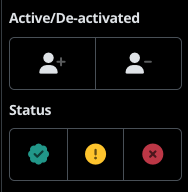
For a more effective member management, remember also that the filter section in the right can be used to filter out project members according to their status.
Note: If the user cannot set their password and/or do not receive invite emails (even after checking the email spam box), please contact support@cmrad.com to activate the user.