![Collective Minds_logo.png]](https://help.collectiveminds.health/hs-fs/hubfs/Collective%20Minds_logo.png?height=22&name=Collective%20Minds_logo.png)
Seminars are a feature on Collective Minds that empowers institutions and societies to host interactive teaching sessions. During a seminar, educators and participants can simultaneously review DICOM cases, explore detailed case information, and engage with hidden diagnoses and interactive polls.
Seminar Access:
The seminar creator controls access to each seminar. Seminars are shared through a secure link, which may be protected by a password or restricted by date. To request access, please contact your course administrator.
Joining a Seminar: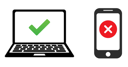
- Use a Computer to join the seminar; mobile devices are not supported.
- For the best experience, open Google Chrome
 as your browser.
 - Click the seminar link provided by your course or class administrator—no login to the platform is required.
- If prompted for a password, enter the password shared by your administrator to access the seminar.
Seminar Page Components:
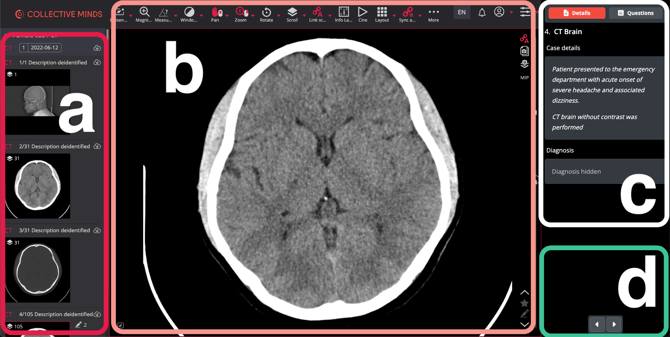
-
- Case series
- DICOM Viewer
- Case details, diagnosis, and questions
- Case Switch
Case Details and Diagnosis: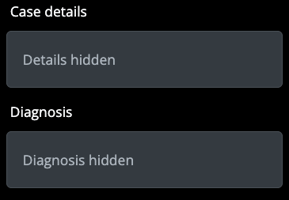
Cases within a seminar can include case details and diagnoses in the right corner of the screen, which the seminar owner controls. Only the presenter determines when these fields become visible to delegates. If case details or diagnoses are hidden, you’ll see an indicator confirming they are concealed. When the presenter chooses to reveal this information, your screen will update in real time to display the newly available details.
Accessing Questions and Polls: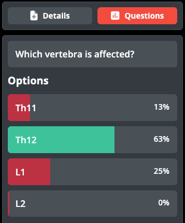
Some cases may feature questions or polls, accessible in the upper right corner of the screen under the "Questions" tab. These may include polls, questions with correct answers, as well as single or multiple-choice selections.
To respond, simply click your chosen answer and submit. The presenter controls when results are revealed. Once results are displayed, you’ll see whether your answer was correct; for polls, you’ll see a breakdown of responses.
Using the DICOM Viewer:
Seminars feature a clinical-grade DICOM Viewer equipped with a comprehensive suite of tools designed for medical imaging review. Below, you’ll find practical tips to help you make the most of the viewer’s capabilities.
 Preload - Preloading series will give you a smoother scrolling experience. Click the cloud icon next to the study or series
 Layout - Adjust your layout by selecting the layout option in the DICOM Viewer toolbar. You can also right click any series in your right menu to add it to your layout.
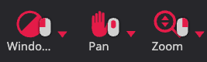 Assigning tools to mouse - Use your left, middle or right mouse button to click on any tools in the DICOM toolbarto assign it to that button.
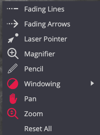 Quick Access to tools - Right click anywhere in the viewer to get a quick access to the most commoly used tools in the DICOM Viewer.
For more viewer insights, please visit the DICOM Viewer Section in our knowledge base