![Collective Minds_logo.png]](https://help.collectiveminds.health/hs-fs/hubfs/Collective%20Minds_logo.png?height=22&name=Collective%20Minds_logo.png)
✅ Pre-Event Checklist
🌐 Browser & Internet
- ☐ Use Google Chrome (preferred browser)
- ☐ Ensure fast internet connection (70+ Mbps) 🛜 test
- ☐ Keep your network setup as fast and simple as possible
🖥️ Setup & Hardware
- ☐ Use dual monitors if available
- 💻 Monitor 1: Meeting platform (Zoom / Teams / Google Meet)
- 🖥️ Monitor 2: DICOM viewer in Chrome (full-screen + landscape)
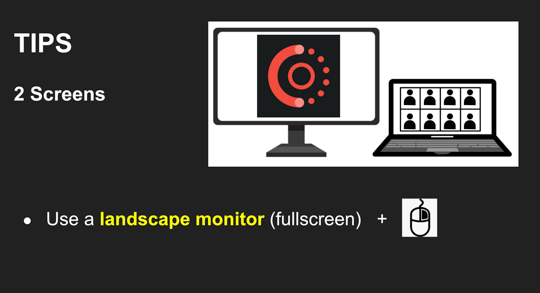
- ☐ Use a mouse 🖱️ for smoother navigation
- ☐ Close all unused programs and apps to maximise performance

-
Mobile phone and tablet devices are not supported for case viewing
-
☐ Temporarily mute notifications 📱🔔
- ☐ Mute your microphone when not speaking 🎤
🛜 Pre-Session Testing
- ☐ Test platform access and case load performance in advance of an event by opening a case or seminar from your location
🌐 Internet & Network
⚡ Use the fastest internet connection available — we recommend a minimum of 70 Mbps, with a wired Ethernet connection preferred whenever possible.
🔒 Avoid VPNs where possible, as they can impact performance. A simple, direct internet connection is recommended.
🏢 If you're on an institutional or hospital network, confirm that access to Collective Minds is not restricted by firewalls, proxies, or security policies.
📶 Have a backup connection available. If performance issues occur, switching to a 5G connection or mobile hotspot can often provide a reliable alternative.
💻 Computer Setup
🖥️ Use a computer with 16 GB of RAM for optimal performance.
🔄 Keep your operating system, web browser, and meeting software up to date to ensure compatibility and stability.
🖱️ Use a mouse rather than a trackpad for smoother image manipulation, scrolling, measurements, and navigation within the viewer.
💡 Helpful Tricks & Tips
🔖 Bookmark links for quick and easy access to each session.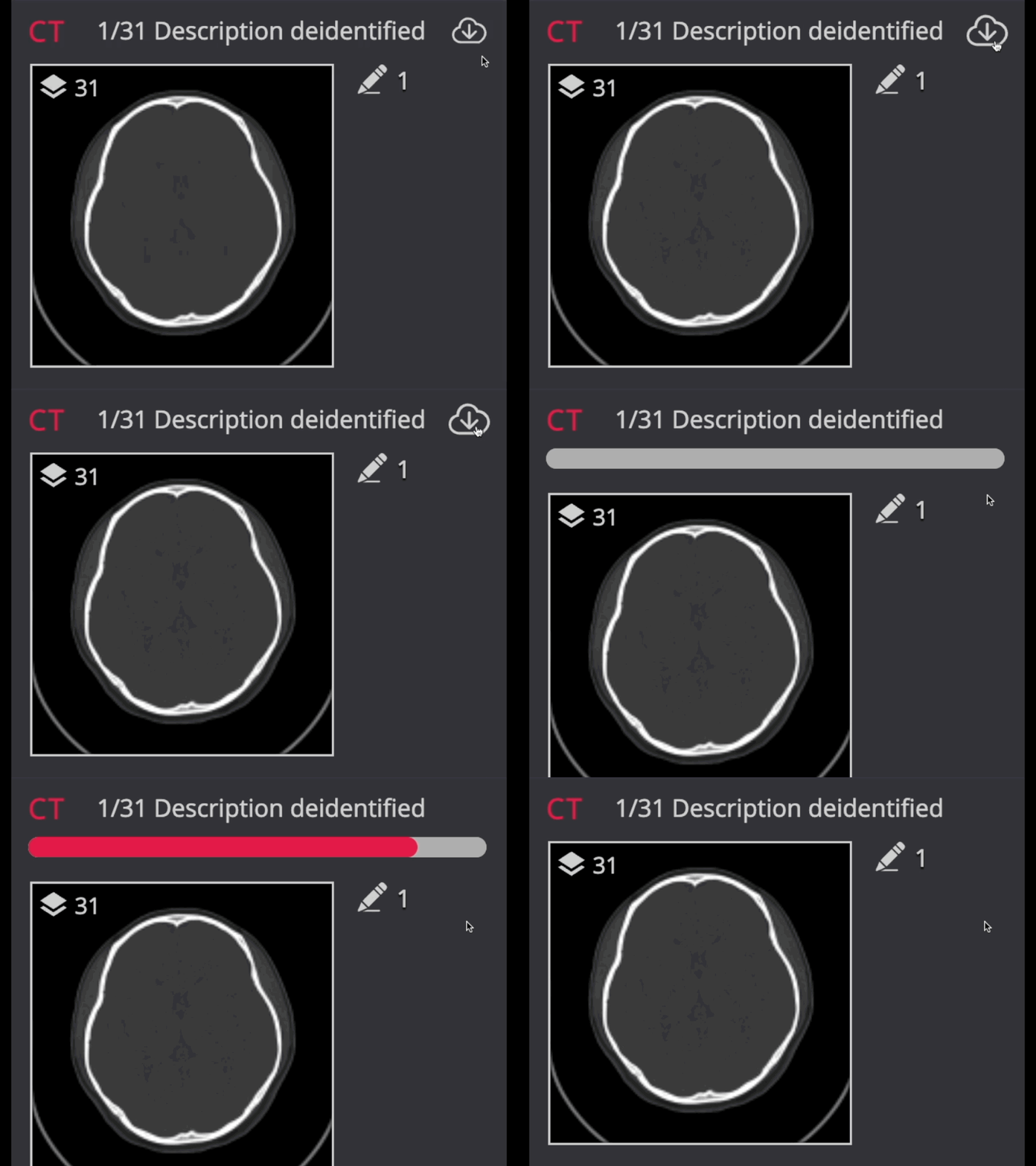
⚡ Use the “Preload” buttons in the viewer to cache a case locally — this improves performance and unlocks advanced viewing tools.
🔄 Reload the case or refresh the viewer to resolve most common issues (this fixes the vast majority of issues).
📶 If performance drops, switch to an alternative connection such as 5G or a mobile hotspot.