![Collective Minds_logo.png]](https://help.collectiveminds.health/hs-fs/hubfs/Collective%20Minds_logo.png?height=22&name=Collective%20Minds_logo.png)
Prerequisites
- Your organization is running Collective Minds Research version 1.13 or later.
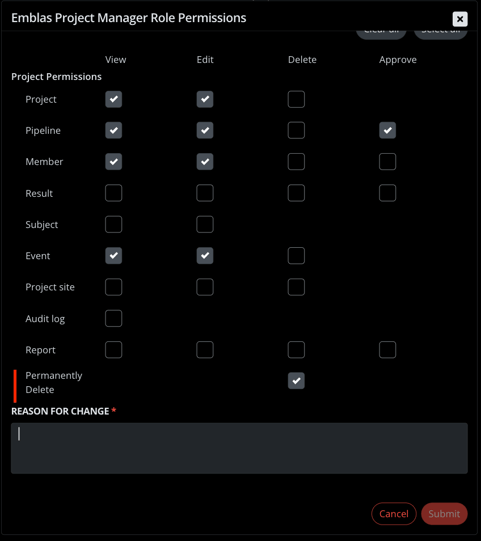
- You have been granted the Permanently Delete project permission by your project administrator.
- The event containing the data you want to delete has been signed off (ran), or the report that you want to delete has been approved or rejected.
What Can Be Permanently Deleted?
Permanent Delete applies to the following dataset types within your project pipeline:
- Studies — complete DICOM studies uploaded to an event can be deleted from the event where the study was uploaded
- Study series — individual image series within a study can be deleted from the event where the series was uploaded
- Attachments — PDFs, files, and other uploaded documents
- Form values — data entered into configured forms (the form structure itself is preserved; only the filled values are removed)
- Reports — reports that have already been approved or rejected
Data can only be deleted from events that have been signed off, or from reports in a final state (approved/rejected). You cannot delete data from events that are still in progress.
Step-by-Step Guide
Step 1: Verify Your Permissions
Only users with roles with the Project Permissions: Permanently Delete enabled will see the delete option in the interface. If you don't see it, contact your project administrator to request access.
Pro Tip: This is a dedicated permission — it is separate from edit or view permissions. Administrators should assign it sparingly, as permanent deletion is irreversible.
Step 2: Navigate to the Data
Press View for the signed-off event or navigate to the approved/rejected report containing the data you want to remove. The delete icon appears next to each eligible dataset type (study, series, attachment, form value, or report).
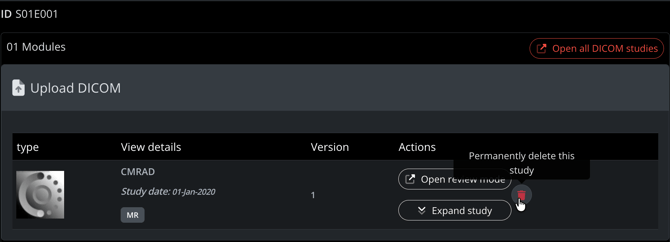 Initiation of permanent deletion of a DICOM series from an Upload module
Step 3: Initiate Deletion
Click the delete icon. A confirmation dialog will appear with a clear warning that this action is irreversible.
Step 4: Confirm by Typing "permanently delete"
To prevent accidental deletions, you must type the exact phrase permanently delete into the confirmation input field. This follows the same pattern used by platforms like Amazon AWS for high-impact destructive actions.
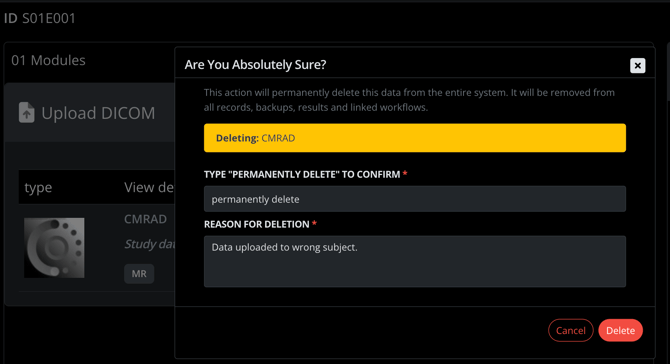 Confirmation dialog for permanent deletion of the "CMRAD" DICOM series
Step 5: Provide a Reason
A mandatory free-text field requires you to document why this data is being deleted. This reason is recorded in the audit log and serves as part of your compliance trail. Be specific — for example: "Patient requested PII removal per GDPR Article 17" or "Incorrect data uploaded to wrong subject.", following your organization's internal guidelines (see example in image above).
Step 6: Confirm and Execute
Once you've typed the confirmation phrase and provided a reason, confirm the deletion by pressing Delete. The system will:
- Remove the data from all storage layers (making the data non-recoverable).
- Replace the data in the UI with a placeholder, indicating data has been deleted.
- Create an audit log entry with full traceability details.
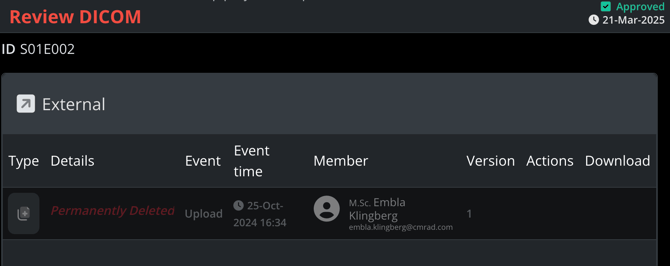
UI placeholder for the deleted DICOM data in the following Review DICOM event
What Happens After Deletion?
-
Downstream pipeline impact: All events to the right of the deleted data's event (all subsequent events in the pipeline, regardless of direct dependency) may need to be re-run.
-
UI behavior: Anywhere the deleted dataset previously appeared — events, modules, subject detail view — a placeholder is shown instead. The data is no longer accessible through any part of the interface.
-
Storage: The dataset is permanently removed from all storage layers. There is no recycle bin, no soft-delete state, and no recovery mechanism.
Audit Trail
Every permanent deletion generates an audit log entry (ResearchProjectDataPermanentlyDeleted) containing:
- Actor: User ID and role of the person who performed the deletion
- Project context: Project ID, event, subject, and run version
- Dataset reference: ID and filename of the deleted dataset
- Timestamp: Date and time in UTC
- Reason: The free-text justification provided during confirmation
This audit trail is immutable and available for regulatory inspection.
Troubleshooting
Issue: I don't see the delete icon on a signed-off event. Solution: Verify that your user account has been assigned the Datasets: delete permission. Check with your project administrator. Why this happens: The delete option is only visible to users with the specific Datasets: delete permission, and only on events that have been signed off or reports that are approved/rejected.
Issue: Downstream events contain UI placeholders for data after deletion. Solution: This is expected behavior. Review the events containing the placeholders and re-run them to ensure pipeline consistency with the updated data state. Why this happens: Deleting data from an upstream event may invalidate results computed by subsequent events. The system flags all downstream events as a precaution.
Issue: I need to recover permanently deleted data. Solution: Recovery is not possible. Permanent Delete is by design irreversible. If data was deleted in error, consult your organization's incident reporting process. Why this happens: The feature is intentionally designed as a last-resort measure for regulatory compliance. All data is removed from all storage layers.