![Collective Minds_logo.png]](https://help.collectiveminds.health/hs-fs/hubfs/Collective%20Minds_logo.png?height=22&name=Collective%20Minds_logo.png)
Checklist
🖥️🔌🖱️ Presenter Computer & Network
✅ Internet speed: A minimum of 100 Mbps is recommended for the presenter. 70 Mbps or more is recommended for each audience member.
✅ Use a wired connection 🛜 if available. A dedicated network is preferred, separate from both the audience network and the general hotel/venue Wi-Fi.
👉 Test your internet speed here
✅ Use a mouse 🖱️ for easier navigation of the viewer and seminar.
✅ Close all unused apps and programs to maximise computer performance.
💡 Preparation Step 1: Log in to the CM platform well before your session on your own computer.
First, review your cases and slides away from the stage and big screen to make sure everything is ready when its time to present.
Log-in steps:
- Open Google Chrome.

- Go to www.cmrad.com
- Enter your email and Password - Click Login.
Want to review and update your email and password? See the reset guide [here].
💡 Event Tip: If you’re going to present your seminar from a different computer than your own, make sure you know your email and password so you can log in smoothly on stage.
💡 Event Tip: If you are using an international keyboard on stage, be familiar with how to type the “@” symbol when entering your email address. Keyboard layouts can vary when travelling internationally.
Preparation Step 2: Locate your Seminar.
- Open the My Seminars (beta) menu.
- Find the seminar on the list
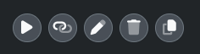
- Click the Actions > Edit ✏️ icon to enter draft mode.
Preparation Step 3: Review your Seminar Playlist in draft.
Review the full seminar to make sure everything is in order.
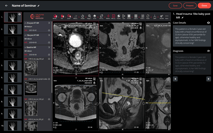

✅ Check that all slides and cases are in the correct order.
✅ 👁️ Check that cases, clinical details field, and relevant slides are marked as visible.
- Identify slides and cases you want the audience to see.
- Confirm that these are set to Visible / Unhidden.
✅ Check that all questions have answer options completed.
- Review each slide and case that contains a question to confirm that all answer options are populated and visible.
- If an answer option is still missing, edit the question to enable the sharing and present mode.
✅ Check that the Diagnosis field and any slides revealing answers are marked as hidden.
- Review the slides containing case findings and diagnosis information and ensure these are marked as hidden.
- Confirm that the case Diagnosis (DX) field is set to Hidden where appropriate.
💡 Tip: Important: Changes to visibility are reflected on the audience link in real time when you are in Present mode.
Present mode is the best way to test your session before presenting. Check that content is in the correct order, changes are applied, and diagnoses and revealing slides remain hidden until intended.
✅ Check that your cases preload with acceptable speed and layouts.
💡 Tip: To refresh the DICOM viewer, toggle the case back and forward again using the navigation arrows ◀️▶️
🩻 Final checklist before you present.
-
- Do you remember the email and password in order to log in? ✅
- Can you find the seminar via the My Seminars (beta) menu? ✅
- Is the seminar content in the correct order, all questions complete ? ✅
- Do the cases load and appear as expected? ✅
- Are all the answer slides / DX in cases hidden? ✅
- Have you gone through it all in present mode to make sure your changes have been updated? ✅
Great! You’re ready to press Present ▶️ when it's time
Time to Present to the audience 🎤 💻 - Recap.
On stage:
- Open Google Chrome.
- Go to www.cmrad.com
- Click Log In - Enter your email and Password.
- Go to your My Seminars (beta) menu 👉 locate the seminar on the list.
- Click the ▶️ Present action to enter presentation mode in full screen and begin your live session. Remember, all changes now reflect in the audience version in real time.
💡 Tip: Preload each DICOM study in full if it loads quickly on your network. For large datasets with longer load times, preload individual series as needed. If time permits, consider using the Preload Playlist feature to preload the entire seminar.
💡 Tip: For further presentation tips 👉 see here
💡 Tip: To refresh the DICOM viewer, toggle forward or back ⬅️➡️
⚠️ Troubleshooting - Quick fix tip - 👉 Try an incognito window to log in
To open an Incognito window in Chrome to log in again.
- Windows:
Ctrl + Shift + N - Mac:
⌘ + Shift + N
If that does not resolve the issue, reset your browser cookies
Contact on-site event staff for all further IT support