![Collective Minds_logo.png]](https://help.collectiveminds.health/hs-fs/hubfs/Collective%20Minds_logo.png?height=22&name=Collective%20Minds_logo.png)
This is aimed as a quick guide to create and save your first segmentation, given that you have the correct role based permissions for this. If you want to know more about the segmentation module and how to import and export created segmentations, please visit Segmentation module.
- Log in to Collective Minds
- Find your tasklist or the pipeline view
- Find the task/event you want to run (you may filter for SubjectID, Stage, and Event)
- Press "Run event"
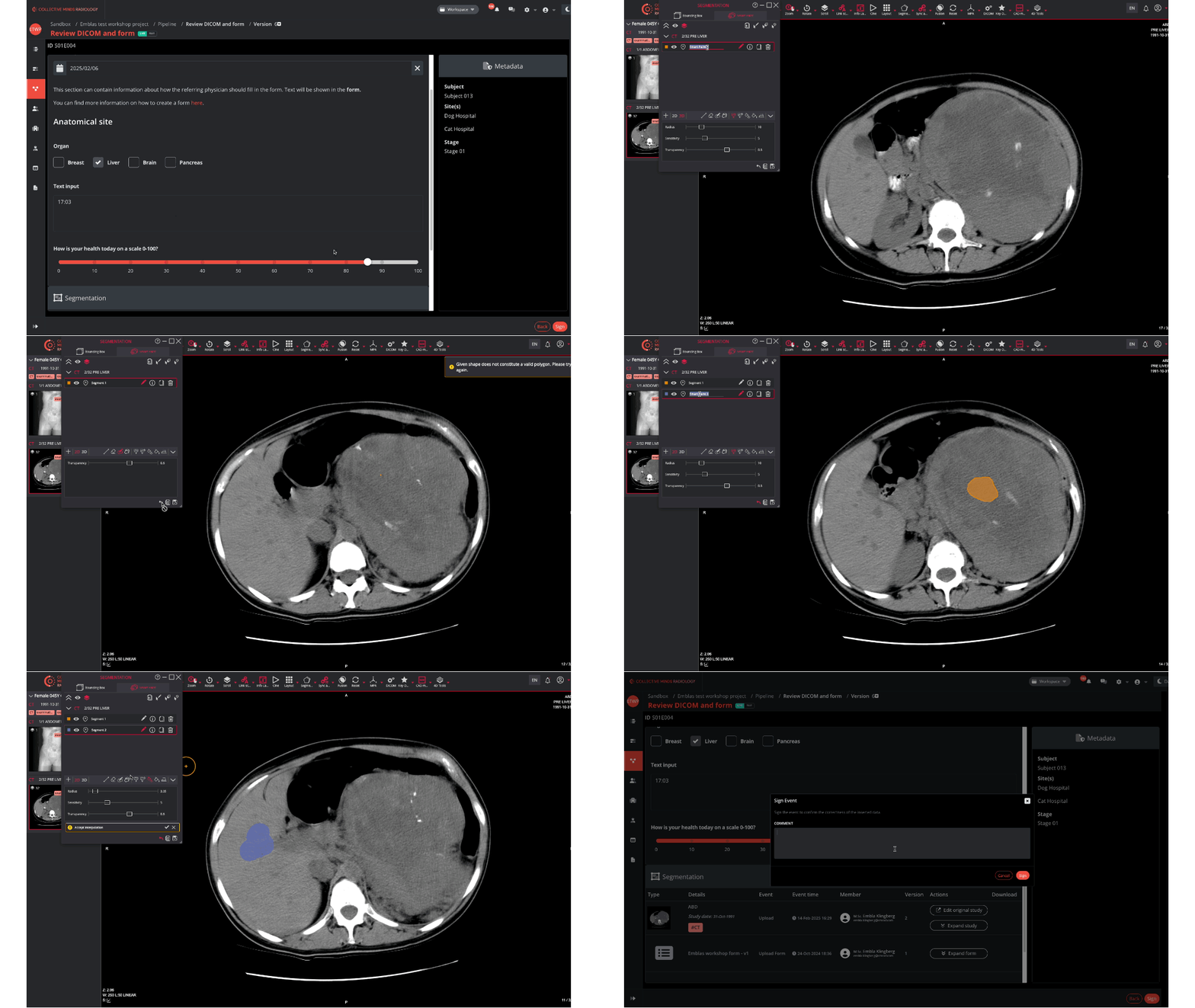
- Under the Segmentation module overview, press "Edit original study"
- In the viewer, press "Segmentation"
 and select "Bounding Box" or "Smart Paint"
 - In the prompt, press the
 in the lower leftmost corner to add a new segment
 - Give your new segment a name, and choose one of the segmentation tools to create it (e.g. free-hand contouring, smart paint, fill paintbrush etc.)
- You can draw contours some slices apart, and then interpolate them by pressing

- You can copy the segment by pressing
 and delete the segment by pressing
- To NAME your segmentation, double-click on the segmentation name in the segmentation box. If your project has preset labels, these will appear in a dropdown list.
- To SAVE your segmentation, press
 in the lower rightmost corner and await confirmation that the segments are saved. Please note that segmentations do not auto-save.
 - Close the viewer and sign the event to make the segments available in later events of the pipeline