![Collective Minds_logo.png]](https://help.collectiveminds.health/hs-fs/hubfs/Collective%20Minds_logo.png?height=22&name=Collective%20Minds_logo.png)
Configuring the Segmentation Module
When configuring an event to contain a segmentation module, you drag-and-drop it from the right side module panel of the "Configure event" view.
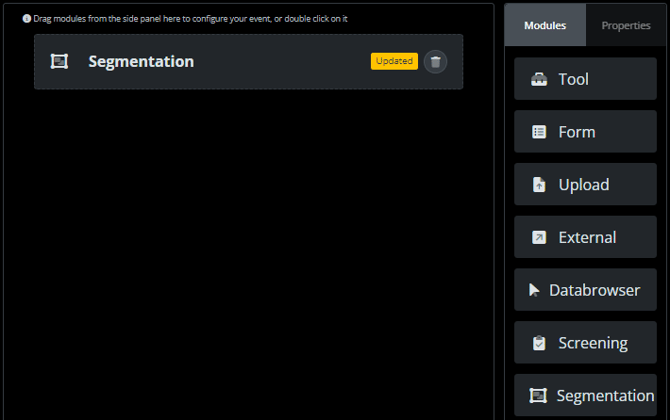
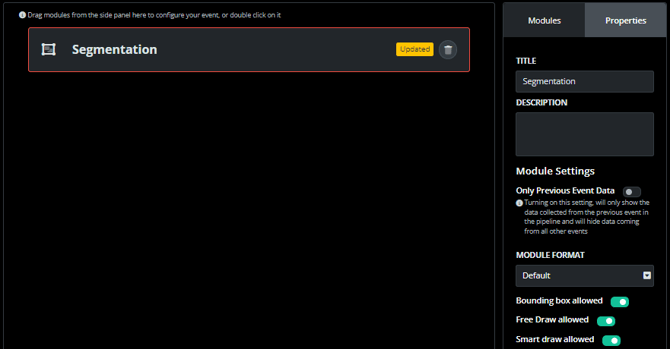
The segmentation module can be configured to allow for the following three drawing options in the "properties" tab:
- Bounding Box
- Free draw
- Smart draw
Configuring Segmentation Labels
In the segmentation module configuration, you also have the option of adding your own, standardized set of segmentation/annotation labels.
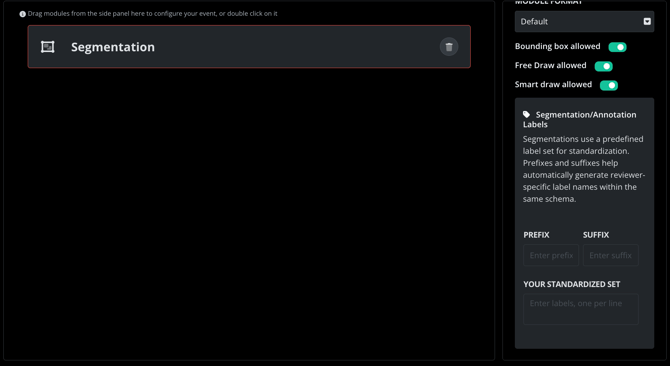
Standardized lesion labels ensure your research team uses consistent naming conventions when creating segmentations in the DICOM viewer. Configure custom label sets with optional prefixes and suffixes to maintain shared context and precision across your clinical trial workflows.
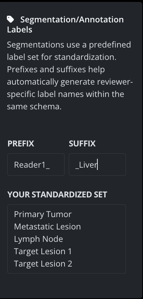
- Prefix: Enter text that is to appear before each label (e.g., Reader1_, Baseline_)
- Suffix: Enter text that is to appear after each label (e.g., _T0, _Liver)
- Your standardized set: Enter your label names one per line. The order will be preserved in the viewer dropdown
- An example of a standardized lesion label setup:
💡 Pro Tip: Collaborate with your clinical team to define a standardized label set before your trial begins. This ensures consistency across all sites and reviewers.
The Segmentation Module in the Live Pipeline
The segmentation module will appear as below for the user running the pipeline event.
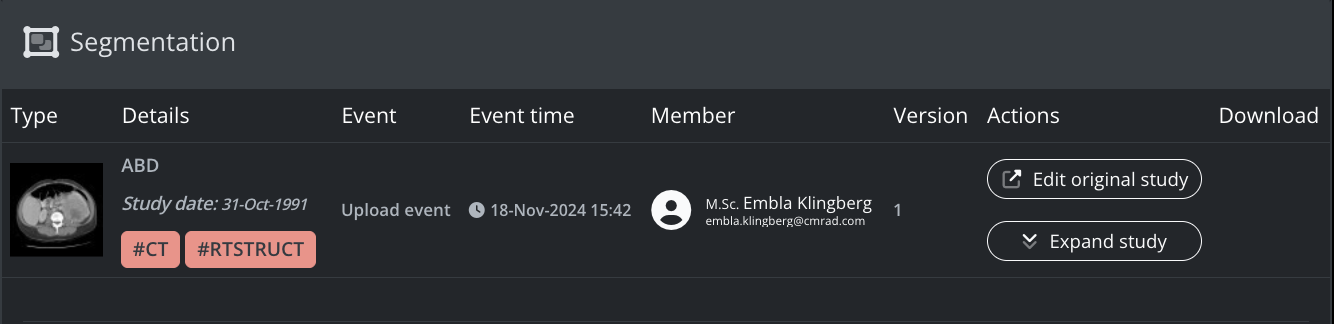
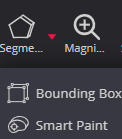
To open the images and create the segmentations, the user selects "Edit original study". The viewer is then opened in a separate tab, and the segmentation tool can be selected:
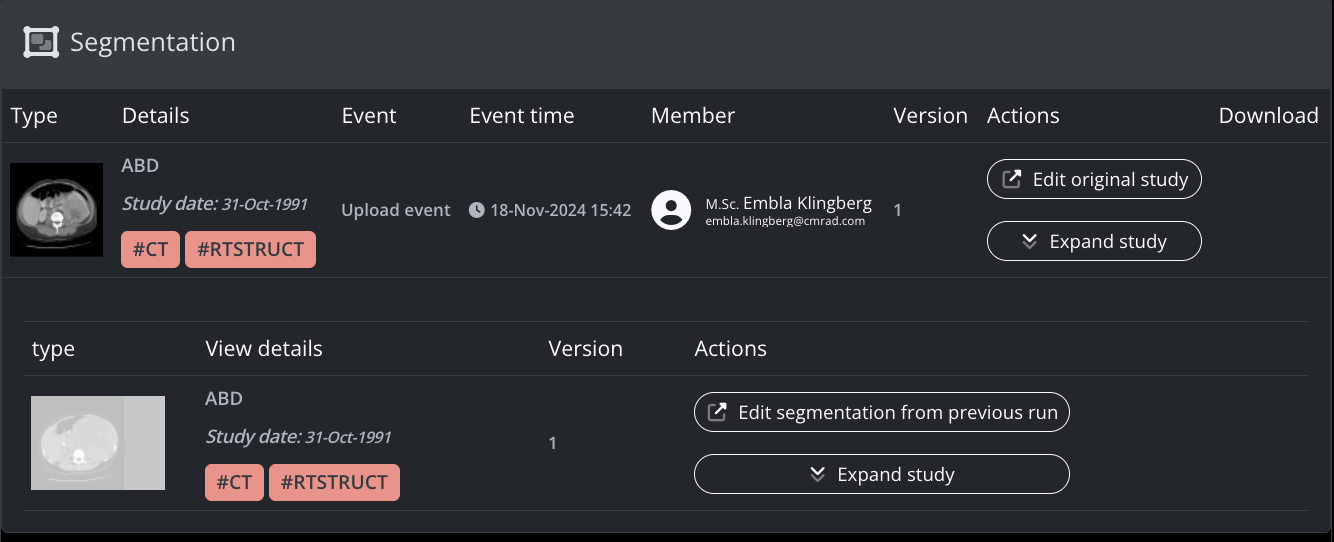
If there already are saved segmentations for the subject and DICOM study, the user has the option to "Edit segmentation from previous run" as shown below, which unlock the saved segmentations for editing.
Below is a view of the DICOM viewer with the segmentation tool activated. Upon clicking the segmentation naming field, the user is exposed to all available pre-defined segmentation labels in a drop-down list.
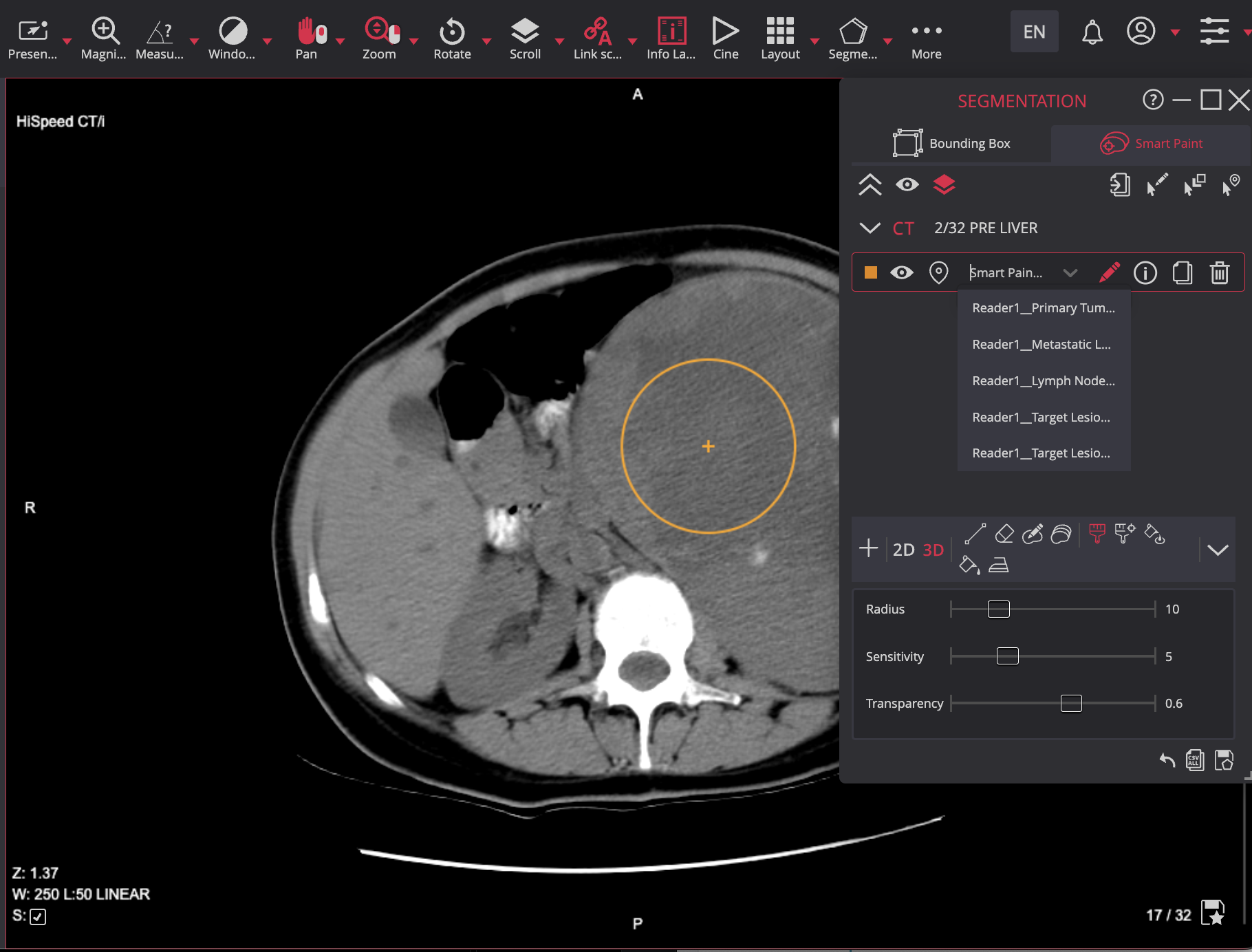
Please see the user manual of the DICOM viewer for detailed explanations on how to use the segmentation tool.
When saving a segmentation, the RT Struct is stored to the project, and may be reviewed in a later stage in the pipeline. The stored segmentations appear as below in a databrowser.
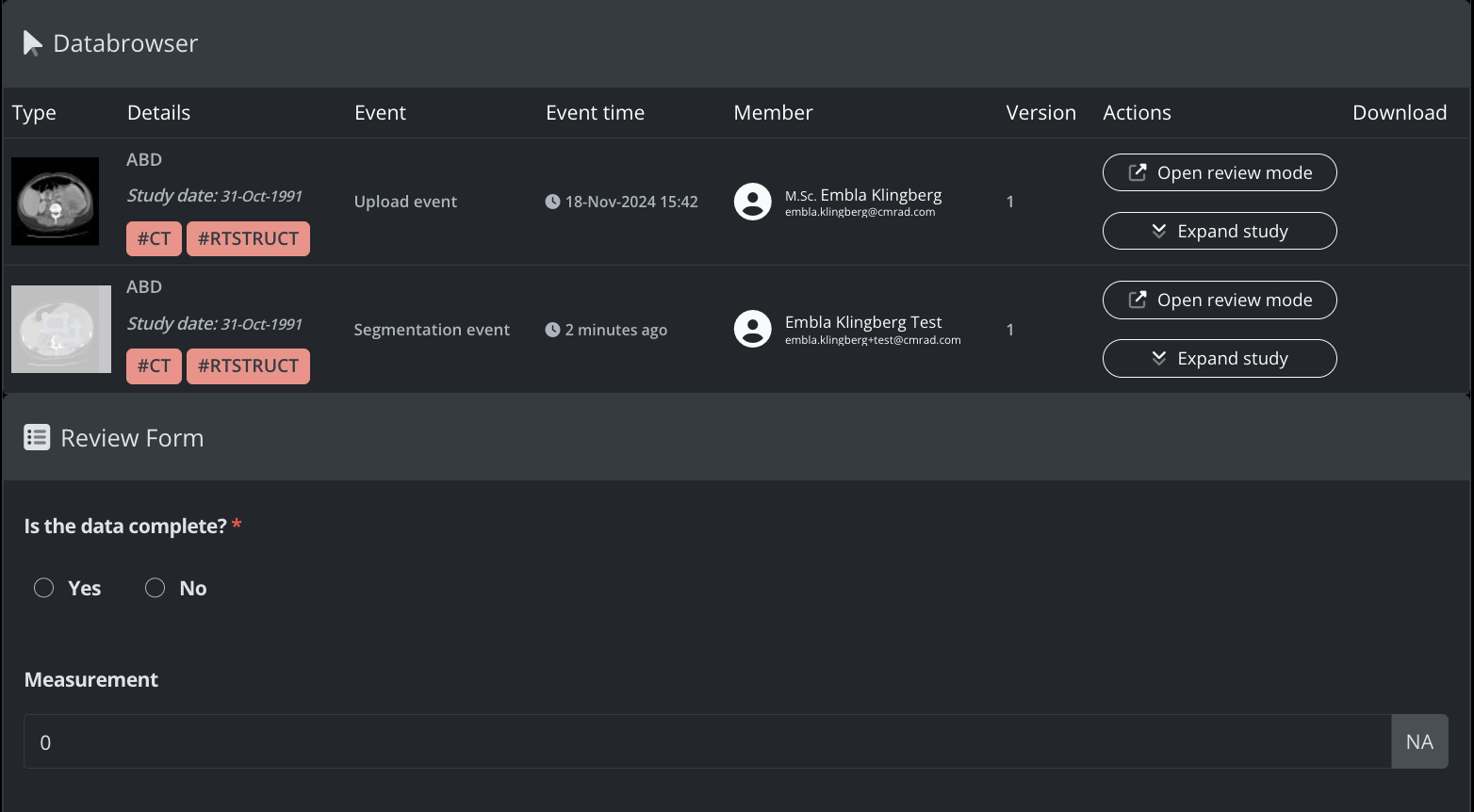
Uploading External Segmentations
When uploading external RT Struct data included in DICOM studies (for instance segmentations), it will be incorporated into the subject pipeline and available for further processing (like modifying the segmentations with the tools in CM viewer).
The following applies to uploaded RT Struct:
- The segmentations are visible, selectable in further events with DataBrowser or Tools module
- The segmentations are editable in further events with Segmentation modules
- The segmentations are downloadable in further events with External modules