![Collective Minds_logo.png]](https://help.collectiveminds.health/hs-fs/hubfs/Collective%20Minds_logo.png?height=22&name=Collective%20Minds_logo.png)
Series Windowing Tips
- Invert Windowing: Press "I" to invert the window.
- Auto-Windowing: Right-click and select Windowing > Auto for automatic adjustments. Shortcut: Press "0"
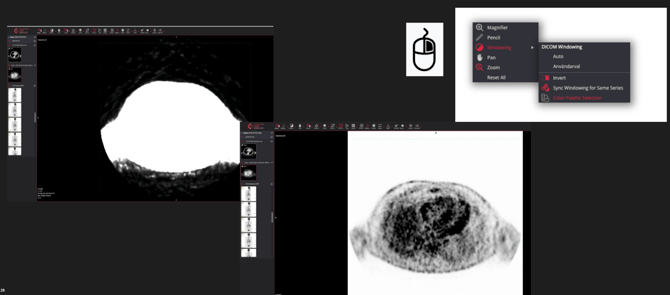
- Fast-Windowing: Press "J" for quick PET series windowing, or right-click and select Windowing > Color Palette Selection.
- Toolbar > Windowing > Histogram. Showing how the data is distributed across different values for visual Windowing (W/L) changes. Y-axis zooming.
Multiplanar Reconstruction (MPR)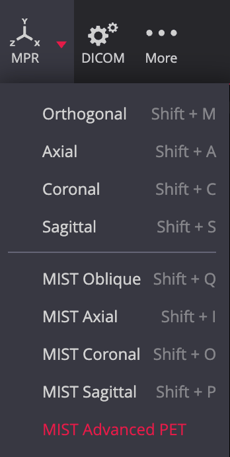
- Tip: Set the layout to 1 x 1 and select an axial series first.
For 2D multi-planar reconstruction (axial, coronal, sagittal), - choose MPR > Orthogonal. Shortcut: Press Shift + M.
MIST Advanced PET
-
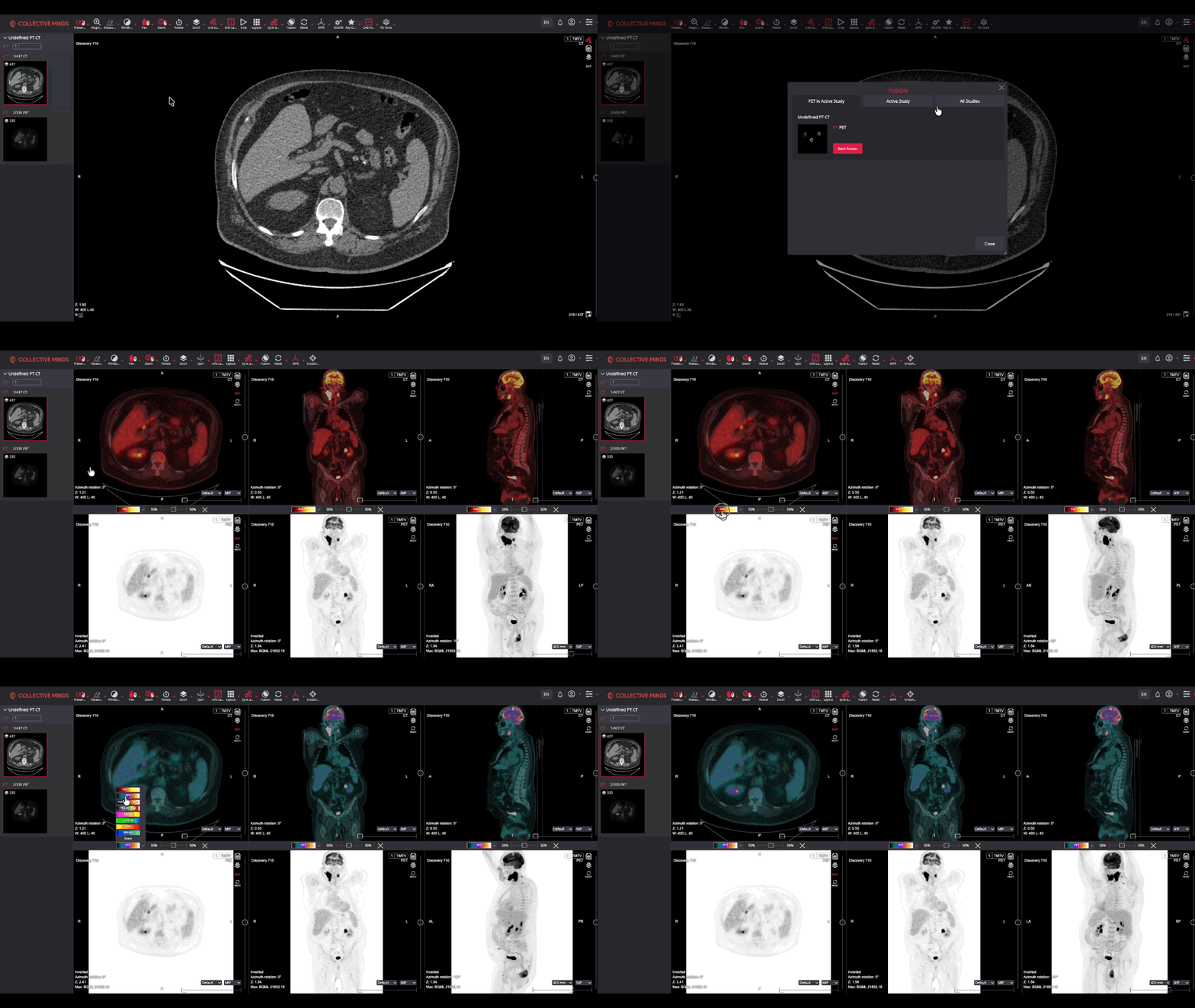
Allows precise adjustments of MIP thickness, supports PET fusion with customizable transparency and color palettes, and includes enhanced visualizations all within a 2x3 layout.
- Tip: Before selecting this feature, set the layout to 1 x 1 and select the axial CT or MR series first.
MIP, MinIP, and Average Projections
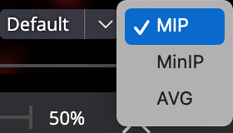 You can create a Maximum Intensity Projection (MIP), Minimum Intensity Projection (MinIP), or an Average Intensity Projection (AVG) from the drop-down menu at the bottom right corner of the panel when using MIST.
Horizontal line
- For NM studies - Toolbar menu > Measure > Horizontal Line
Fusion - PETCT, PETMR
First, select the native CT or MR axial series, then click the FUSION tool, choose a corresponding axial PT series, and create fused images. Preloading will take place before the image display. Tip: Set layout to 1x1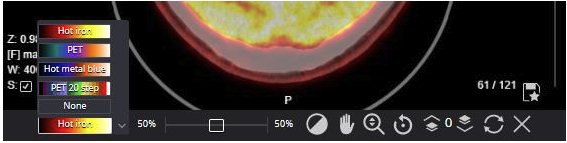
Fusion Series Tools Overview:
- Change Color Range: Select a color scheme for the PET image; defaults to "Hot Iron."
- Adjust Fusion Ratio: Drag the ratio bar to highlight the top or bottom series.
- Windowing: Adjust the contrast and brightness of the top series via the fusion toolbar.
- Pan Tool: Align the top fusion series for better anatomical matching.
- Zoom Tool: Scale the top series image independently.
- Rotate Tool: Rotate the top series image.
- Manual Adjustment: Shift the top fusion series to match the bottom.
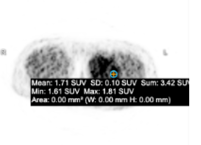
- Standard Uptake Value (SUV): Use Ellipse measurement for SUV calculations.
- Ellipse: Use the Ellipse (Measure > Ellipse or Shift + E) to define and sample a Region of Interest (ROI). further Values include HU, SD, Sum, Min, Max, and area.
- Reset: Restore all adjustments to the original state.
- Close Fusion: Click the "X" to close the fusion series.