![Collective Minds_logo.png]](https://help.collectiveminds.health/hs-fs/hubfs/Collective%20Minds_logo.png?height=22&name=Collective%20Minds_logo.png)
Checklist ✅
- Use Google Chrome if possible.

- Fast internet - 70+ Mbps internet speed 🛜. - test here
Tip: Keep your network setup as fast and as simple as possible.
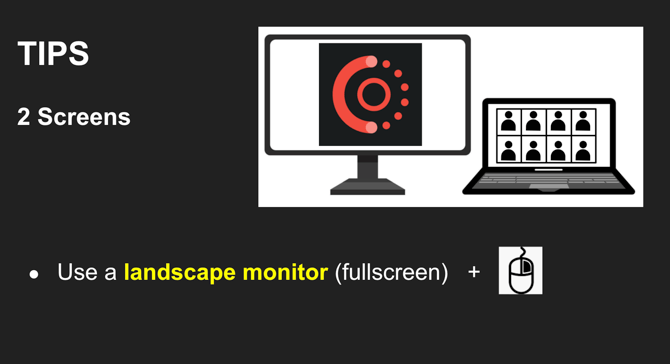
A wired connection is best. - Use Dual monitors for optimal setup:
Assign Monitor 1 💻 to your meeting client (e.g., Zoom, Teams, Google Meet) and Monitor 2 🖥️ for presenting/sharing and accessing the DICOM viewer via Chrome - Use a mouse🖱️
- Close all unused programs to help maximize computer performance.
- Temporarily mute notifications to avoid disruptions 📱🔔 ‼️ 💬
- Mute your microphone when not speaking 🎤
Presenting cases
Program switching:
Toggle between programs like Google Chrome, Google Slides, or PowerPoint.
-
⌘ Command + Tab on Mac
-
⊞ Alt + Tab on Windows PC
Enhance case navigation and DICOM viewer skills:
- Ensure only one DICOM viewer is used.
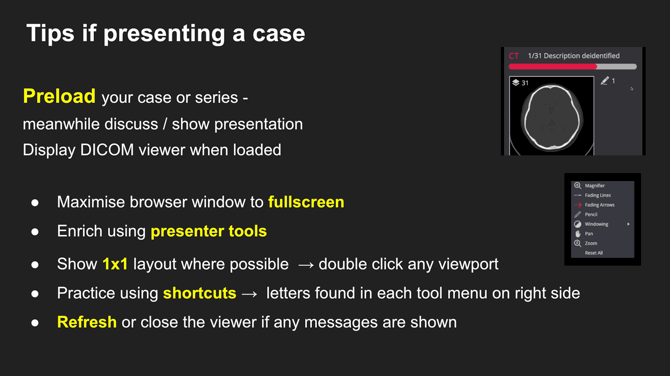
- Opt for using a 1x1 viewport layout whenever feasible to maximize detail for the online audience. Tip: A quick double-click on the viewport toggles between layouts.
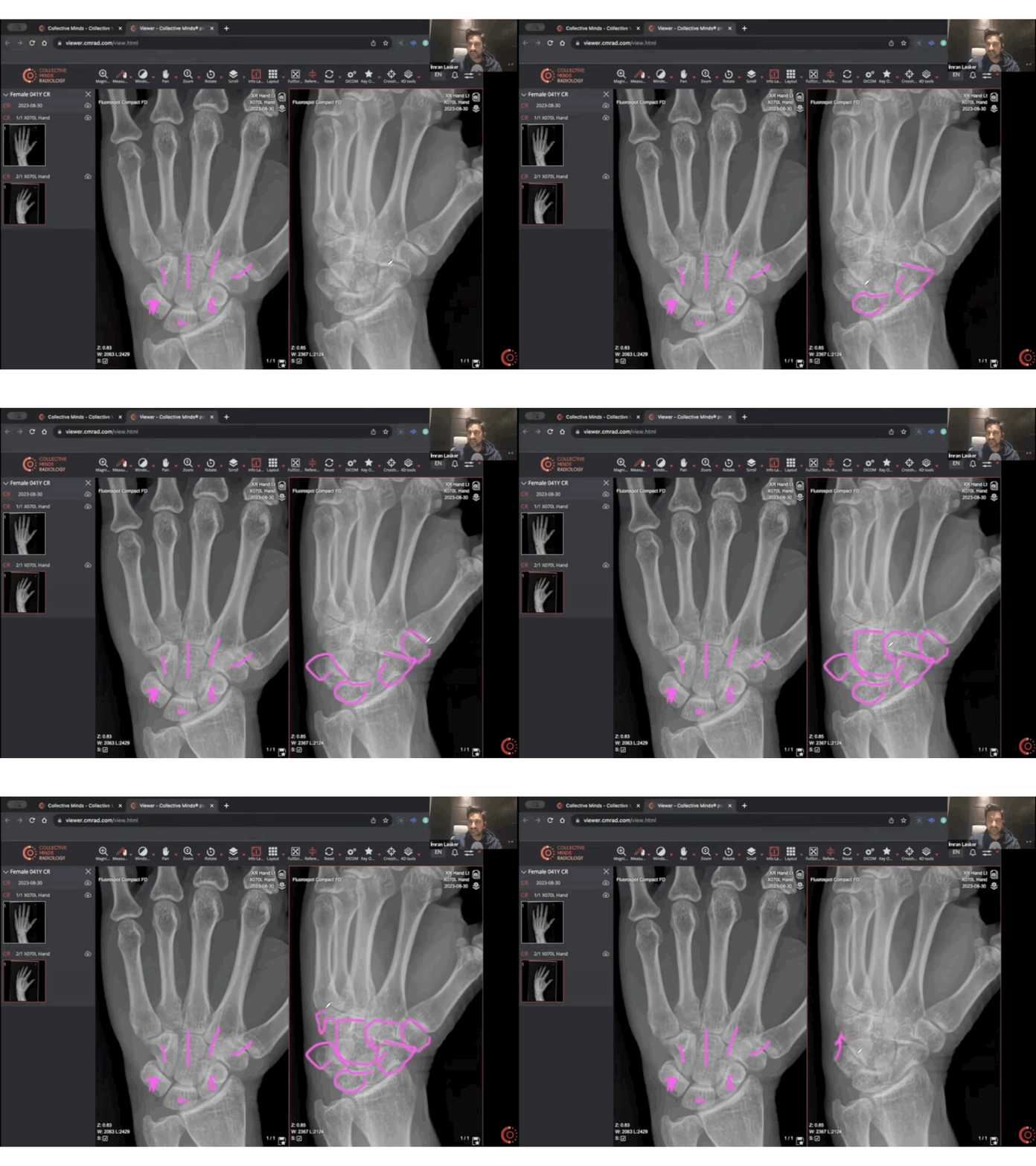
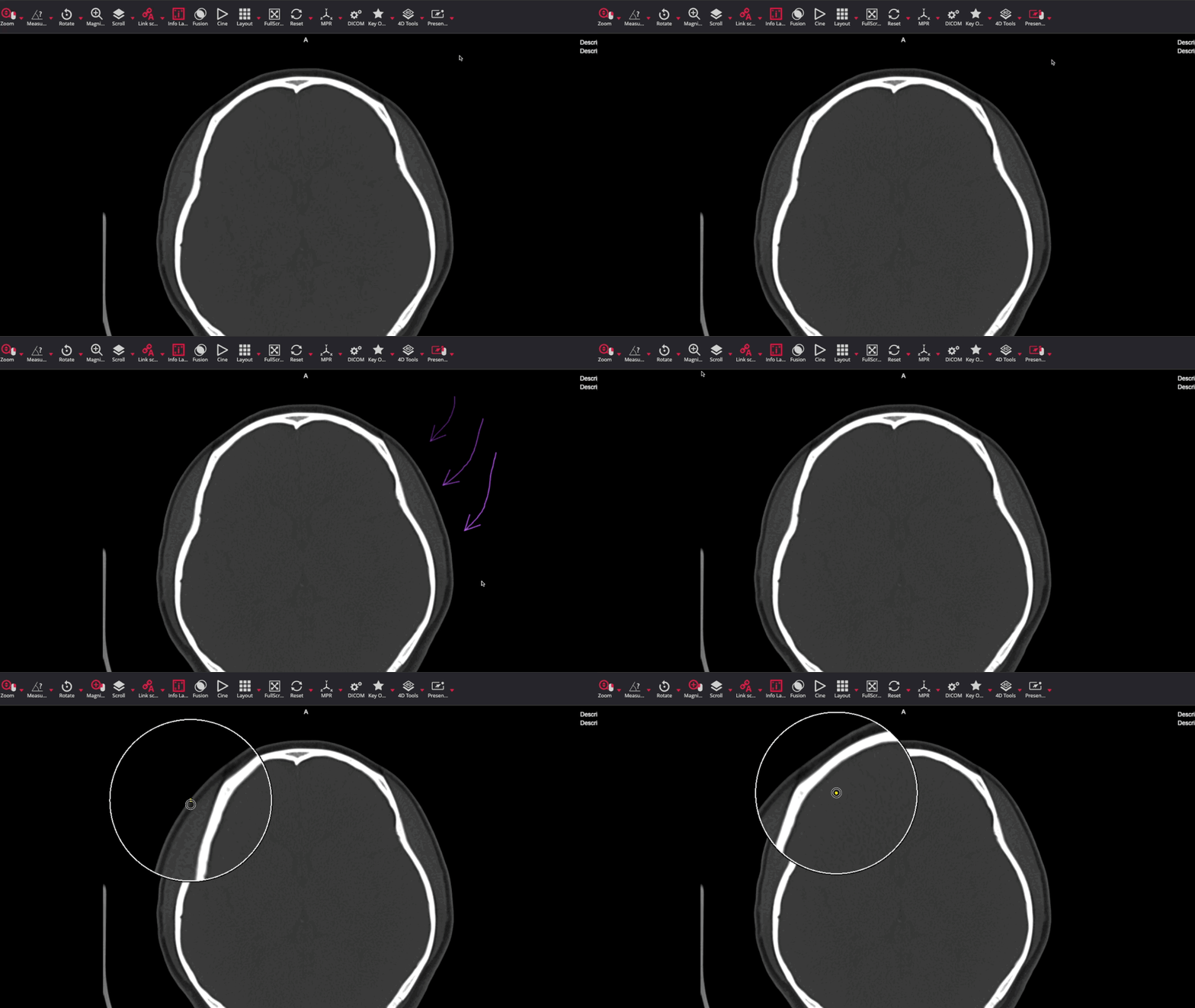
- Make use of various tools and shortcuts, including fading arrow, fading lines,
whiteboard, magnifier, zoom, and laser pointer, to show key findings.
- ☁️⬇️ Preload each study to ensure optimal
performance during your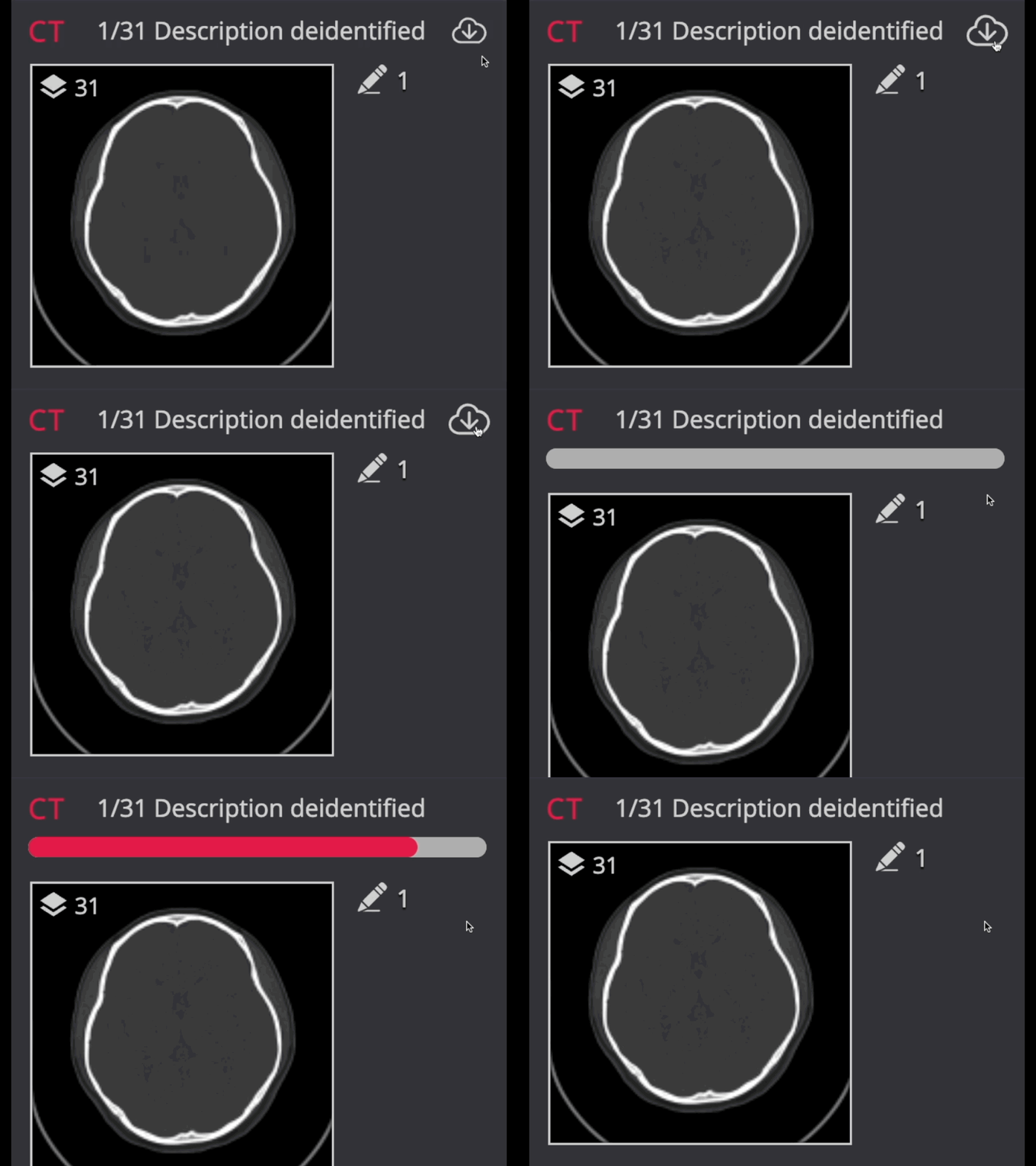 review.
 - Before going live, preload the content at least once to ensure each study loads at the expected speed.
- Measurement Line (
D), ROI Ellipse (Shift + E), Erase (E), Auto Window (0).
---------------------------------------------------------------------------------------------------------------------------------------
Network and Permission Considerations: 🛜 🔒⚠️🚫
-
Keep network setup simple: Avoid VPNs where possible, as they can reduce load performance.
-
Hospital networks: Can be used, but may have security restrictions and bandwidth limitations in place affecting scroll and load speed. Always test network performance, access, and sharing permissions before live sessions.
-
Check requirements: Ensure all necessary programs, ports, and connections are open and accessible.
-
Have a backup plan: If the connection is lost or performance becomes poor, switch to a personal hotspot or alternative network.
-
Be prepared to switch: Familiarise yourself with changing networks (e.g., using 5G) if needed.