![Collective Minds_logo.png]](https://help.collectiveminds.health/hs-fs/hubfs/Collective%20Minds_logo.png?height=22&name=Collective%20Minds_logo.png)
The uploader is a module in the event configuration. This module is used when you want the user to be able to upload image data or other files to an event.
Configuring Upload Module
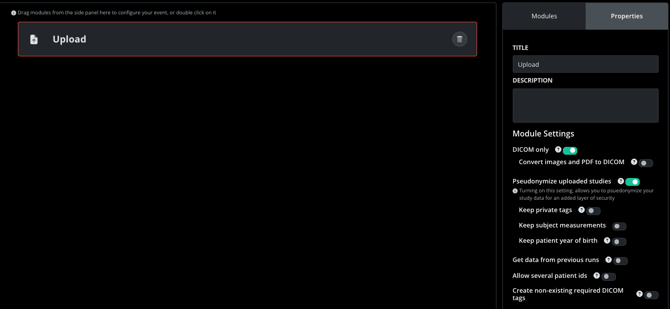
Inside the "configure event" view, you drag-and-drop the upload-module from the right panel. The properties of the uploader are then set in the "Properties" tab.
The properties to be set are the following:
DICOM only
Enabled: Only DICOM and standard images (PDF, JPG, TIFF, PNG) are processed. Zip files are automatically extracted.
Disabled: All file types are accepted. Zip files remain compressed.
Note: Any file format not supported by the DICOM viewer will be available as a downloadable attachment.
Convert images and PDFs to DICOM
Converts images and PDFs so they are viewable in the DICOM viewer.
Note: These files can only be downloaded via the External module.
Pseudonymize uploaded studies
Enabled: Removes personal data from DICOM tags.
Disabled: Keeps original DICOM tags intact.
Keep private tags
(Requires Pseudonymization mode)
All private tags in the study will be preserved.
Note: make sure the private tags don't contain any PII
Keep subject measurements
(Requires Pseudonymization mode)
The following tags are preserved
- PatientSize
- PatientWeight
- PatientAge
Keep patient year of birth
If this option is enabled the patient year of birth will be kept in the form YYYY-MM-DD
Get data from previous runs
Automatically pulls data uploaded in previous event versions into the current one. You can add series/studies or delete data from previous runs and prevent the data to propagate in the pipeline.
Note that the data is not deleted from the platform, only from the pipeline workflow. It will still be visible in the previous version.
If studies or series are accidentally deleted without clicking Sign, they can be restored by selecting Delete All and refreshing the page.
Allow several Patient IDs
Enabled: Upload studies for multiple patients at once.
Disabled: Uploads are blocked if more than one Patient ID is detecte
Create non-existing required DICOM tags
Automatically repairs studies missing essential DICOM tags
PatientID: Uses a random hash if missing.
Modality: Defaults to OT (Other) if missing
StudyInstanceUID: autogenerated
SeriesInstanceUID: autogenerated
SOPinstanceUID: autogenerated.
Running the Upload Module
When the event has been configured and the pipeline approved, the event can be run and the uploader will appear as below:
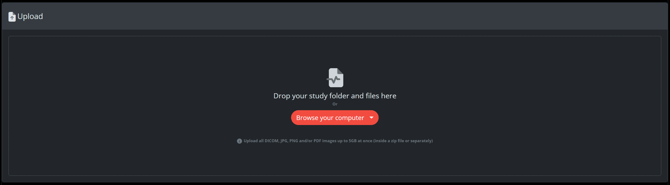
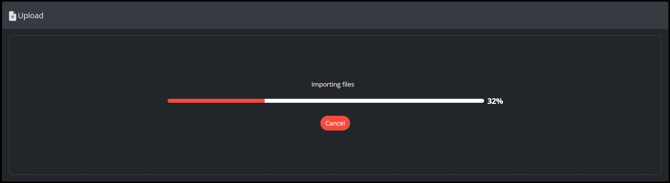
Uploading can be done either by drag-and-drop or by browsing the folder. The progress bar will show the status of the upload, and also what process is ongoing.
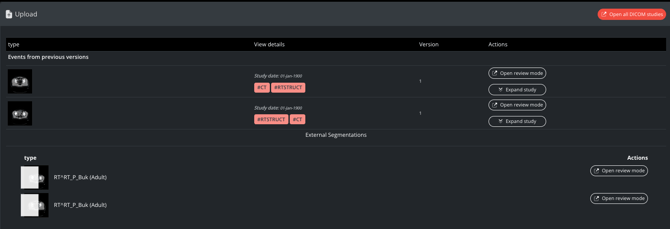
Once the upload is finalized, the uploaded data will be visualized with key images in a databrowser below. Images can also be reviewed from here selecting the "Open review mode". After signing the upload event, the uploaded data will be assigned to the corresponding event and subject in the pipeline.
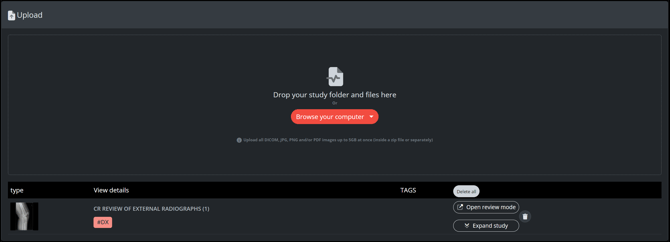
When uploading more than one examination, drag the examinations in folders one exam at a time, and the exams will appear with key images below the upload panel:
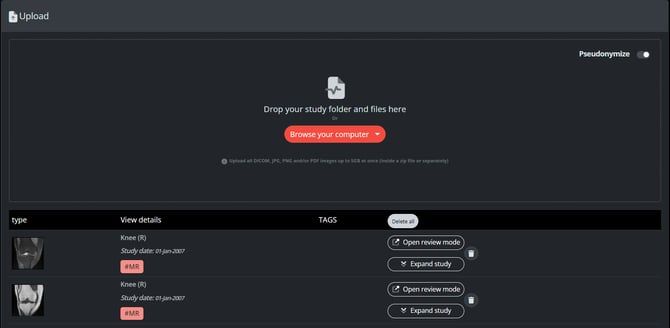
When uploading RTSTRUCT data included into DICOM studies (for instance segmentations), it will be incorporated into the subject pipeline and available for further processing (like modifying the segmentations with the tools in CMRAD viewer).